Debug Serial Port
Interface Description
The GW102 gateway provides a debug serial port function. The debug serial port uses the UART1 controller and supports two serial levels: TTL and RS232.
Developers are advised to purchase USB-to-serial cables that support both TTL and RS232 levels, making it convenient to switch between the two circuits.
| Resistor Configuration | Description |
|---|---|
| R441 and R442 soldered, R439 and R440 not soldered | The debug serial port is RS232, and the debug port is on the J25 terminal. |
| R441 and R442 not soldered, R439 and R440 soldered | The debug serial port is TTL, and the debug port is on JP4. In this case, the RS232 communication serial port on the J25 terminal uses the UART2 controller. |
For shipments after November 2024, the debug serial port defaults to TTL level on JP4. The external terminal is an RS232 communication serial port.
TTL-Level Debug Serial Port The TTL-level debug serial port interface is a 3-pin header, with PCB silkscreen JP4.
The actual TTL debug serial port interface is shown below:
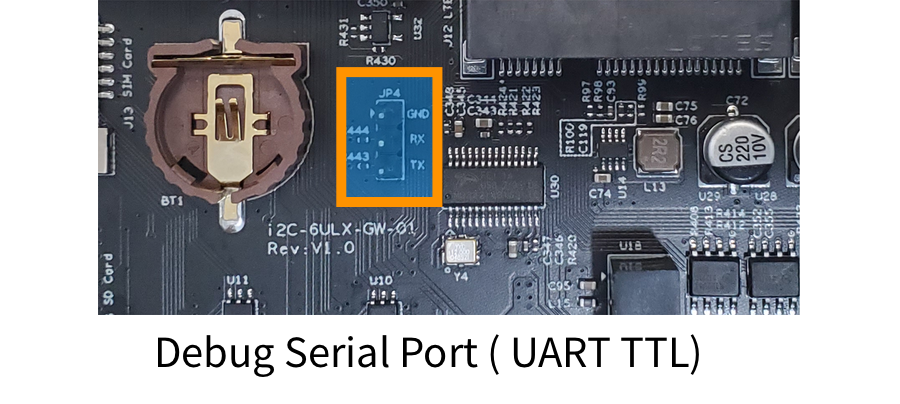
RS232-Level Debug Serial Port The RS232-level debug serial port interface is a terminal block, with PCB silkscreen J25. The corresponding resistors on the board need to be modified to switch circuits.
The J25 terminal has 9 pins, of which Pin7, Pin8, and Pin9 are the debug serial port signals.
The actual RS232-level debug serial port interface is shown below:
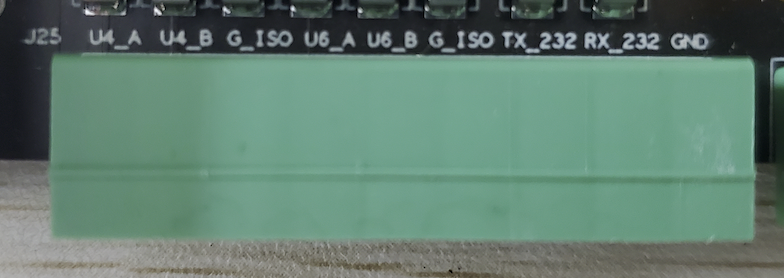
J25 Signal Description
| J25 Terminal Pin Number | Function |
|---|---|
| Pin7 | RS232_TX |
| Pin8 | RS232_RX |
| Pin9 | GND |
Use a USB-to-RS232 serial cable; connect TX and RX crosswise to the corresponding pins on the board.
| USB-to-RS232 Serial Cable | GW102 Silkscreen |
|---|---|
| TX | RS232_RX |
| RX | RS232_TX |
| GND | GND |
Using the Debug Serial Port
The debug serial port parameters are as follows:
- Baud rate: 115200
- Data bits: 8bit
- Stop bits: 1bit
- Parity: None
Gateway login account and password
- Username: root
- Password: empty
Windows Users
Use Xshell Educational Edition as the serial tool and configure it according to the serial communication parameters above.
MobaXTerm
Linux Users
Use c-kermit as the serial tool. On Ubuntu/Debian systems, install it using the apt-get or aptitude command.
sudo apt-get install ckermit The contents of the kermrc configuration file are as follows:
set line /dev/ttyUSB0
set speed 115200
set parity none
set carrier-watch off
set handshake none
set flow-control none
robust
set file type bin
set file name lit
set rec pack 1000
set send pack 1000
set window 5
macOS Users
Use c-kermit as the serial tool; install it using the brew command.
brew install c-kermit Save the following content as a kermrc file in your user directory:
set line /dev/cu.xrusbmodem1a1211
set speed 115200
set parity none
set carrier-watch off
set handshake none
set flow-control none
robust
set file type bin
set file name lit
set rec pack 1000
set send pack 1000
set window 5
Then run the command to open the serial port:
kermit kermrc
After power is connected, the gateway begins to power up and boot, and the startup information can be viewed in the serial terminal software.